Android Setup
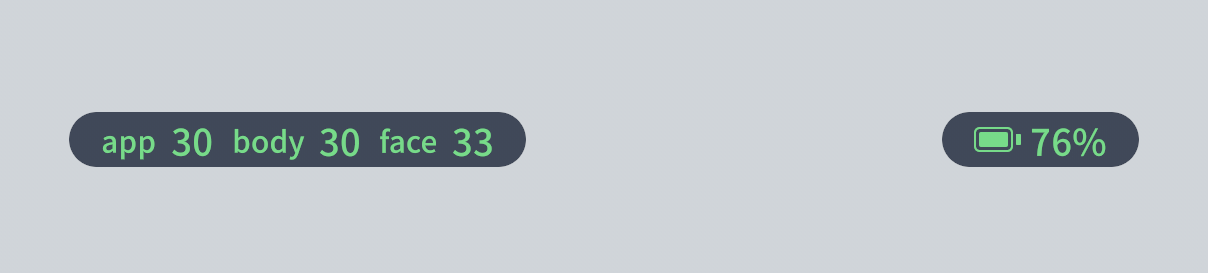
The top-left corner of SAYA shows the app's frame rate, along with the capture frame rates for the body and face. If these numbers stay at 25 fps or higher, capture is stable. If the frame rate is low or fluctuates, on Android this is usually caused by the system's performance limits, and you can adjust them as described below.
Getting the Most Out of SAYA on Android
To save power and control temperature, Android limits apps' processor frequency and background activity by default. Motion capture needs sustained full-load computation, so once it is limited, the frame rate drops noticeably, especially in full-body capture. After you complete the two settings below, SAYA gets the performance it needs.
1. Add SAYA to Game Mode
Many devices have a built-in game mode that lifts the limit on processor frequency. Add SAYA to it and choose the performance-first option.
| Brand | How to set it up |
|---|---|
| Samsung | Open Game Launcher, add Dollars SAYA, and set performance to prioritize performance in Game Booster. |
| Sony Xperia | Open Game Enhancer, add Dollars SAYA, and set the performance preference to performance priority. |
| ASUS | On ROG Phone, open Armoury Crate and turn on X Mode. On Zenfone, use Game Genie and choose the performance option. |
| Google Pixel | There is no such setting, so you can skip this step. |
| Other brands | Many phones have a built-in game mode, often named Game Turbo, Games or Game Space. If yours does, add Dollars SAYA there and choose the performance option. If not, skip this step. |
Menu names vary by brand and system version. If you can't find it, search for game in Settings.
2. Set Battery Usage to Unrestricted
Game mode deals with processor frequency, while the battery setting decides whether the system limits SAYA in the background. Setting the battery to Unrestricted prevents the system from limiting or even closing SAYA during long sessions or when it is in the background.
- Long-press the SAYA icon and tap App info.
- Go to Battery, Battery usage, or Power saving (the name varies by device).
- Choose Unrestricted or No restrictions. If there is an option such as Allow background activity, turn it on as well.
When you are done, go back to SAYA and check the frame rate in the top-left corner to confirm it stays at 25 fps or higher.
Notes
- With the limits lifted, your device will run noticeably warmer and use more power, and the system will still throttle the processor when it gets too hot, which lowers the frame rate. For long sessions, keep the device plugged in, remove thick cases, and avoid direct sunlight. For live streaming or long recordings, a clip-on phone cooler can help.
- If the frame rate is still unstable, let the device cool down for a few minutes before using it again.