Full-Body Calibration
First-Time Setup
Before your first calibration, set User Real Height to 5' 11" (1.80 m) in the Tracking & IK settings of the Main Menu. This is the height of the avatar in Dollars MoCap, and matching it helps your VRChat avatar reproduce your motion more accurately.
You only need to set this once. There is no need to set it again for later calibrations.
Calibration Steps
- Complete motion capture calibration in your Dollars MoCap product.
- In Bridge, click Mouse & Keyboard, press Q to open the Quick Menu, then click Calibrate in the VRChat Quick Menu.
- Press Esc to exit Mouse & Keyboard control. The head and hands return to motion capture control. Then click Calibrate FBT in Bridge, and during the 10 second countdown, stand up straight and raise both arms out to the sides.
- When the countdown ends, Bridge automatically pulls both controller triggers at the same time to complete VRChat full-body calibration.
1. Motion Capture Calibration in Dollars MoCap, Using MONO as an Example
2. Open the Quick Menu and Click Calibrate
3. Click Calibrate FBT and Raise Your Arms
4. Full-Body Calibration Complete
Adjusting the Arm Ratio
During calibration, the VR controllers shown in VRChat should roughly line up with your avatar's hands.
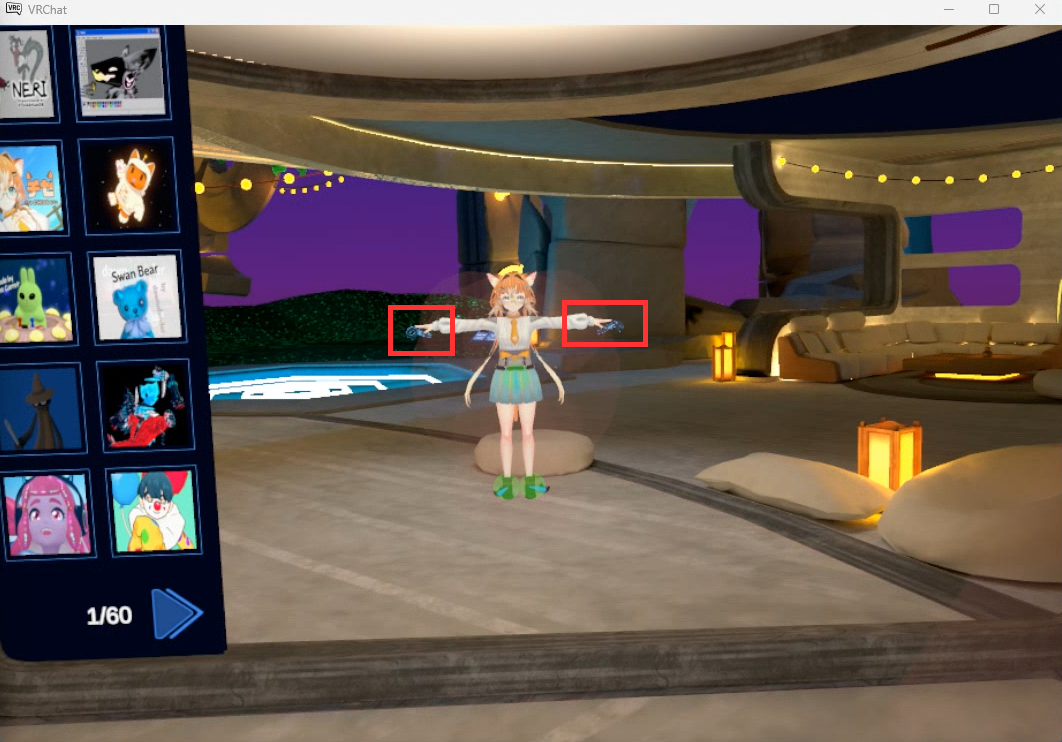
If the controllers are clearly outside your avatar's hands,
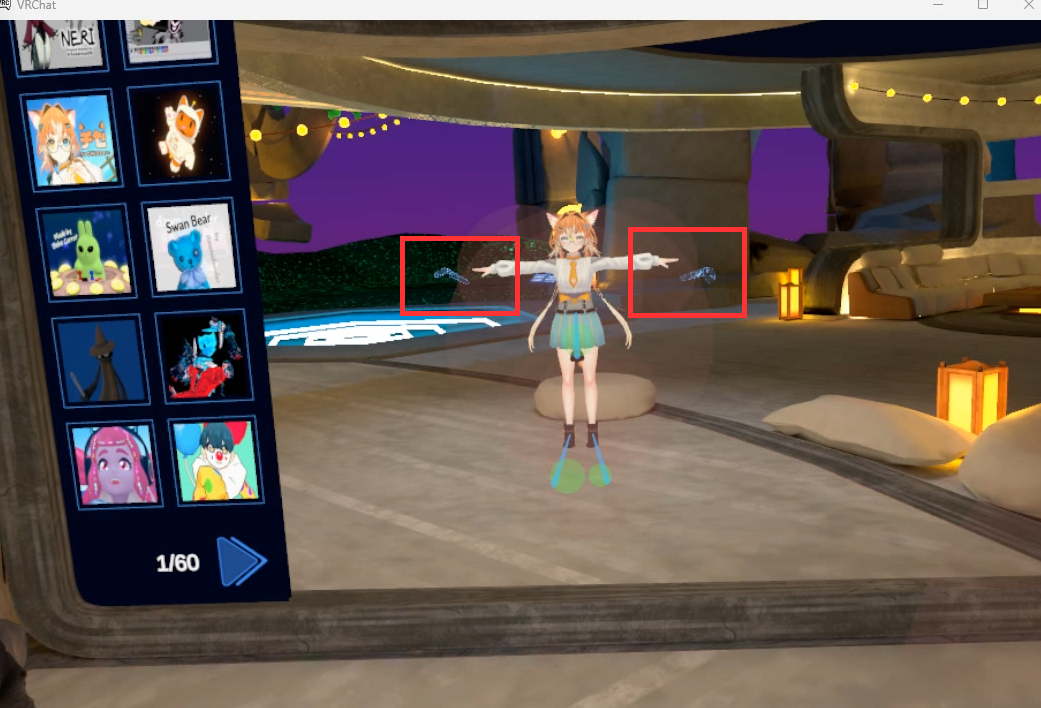
increase Arm vs Height Ratio in the Tracking & IK settings of the Main Menu,
then calibrate again.
Conversely, if the controllers are inside your avatar's arms, decrease Arm vs Height Ratio slightly.